Most Moodle themes list “accessible” as a feature and stop there. We went deeper to find out the most accessible Moodle themes for Higher Education; comparing what each theme actually ships with, from built-in student tools to structural WCAG compliance.

About 19% of undergraduate students in the US have a disability, according to the National Center for Education Statistics. That’s roughly 1 in 5 people who may rely on a screen reader, keyboard navigation, high-contrast colors, or a dyslexia-friendly font just to use your Moodle site the way everyone else does.
And that’s before you factor in the legal reality. In the US, Section 508 applies to any institution receiving federal funding. The UK has the Public Sector Bodies Accessibility Regulations 2018. The EU enforces EN 301 549. All roads lead to the same destination: WCAG 2.1 AA is the minimum standard, and for most universities it’s not optional; it’s a procurement requirement.
The problem is that most Moodle themes say “accessible” in their feature list and leave it there. What that actually means varies enormously. Some themes have solid semantic HTML, keyboard support, and proper contrast. Others barely pass the color check on the default skin. A few, specifically RemUI, ship with a full built-in accessibility panel that gives real controls directly to students, without any IT involvement.
This article breaks down what each of the five accessible Moodle themes actually offers. Not marketing copy. Specific features, what they do, and who they help.
What WCAG 2.1 AA Actually Requires From a Accessible Moodle Theme
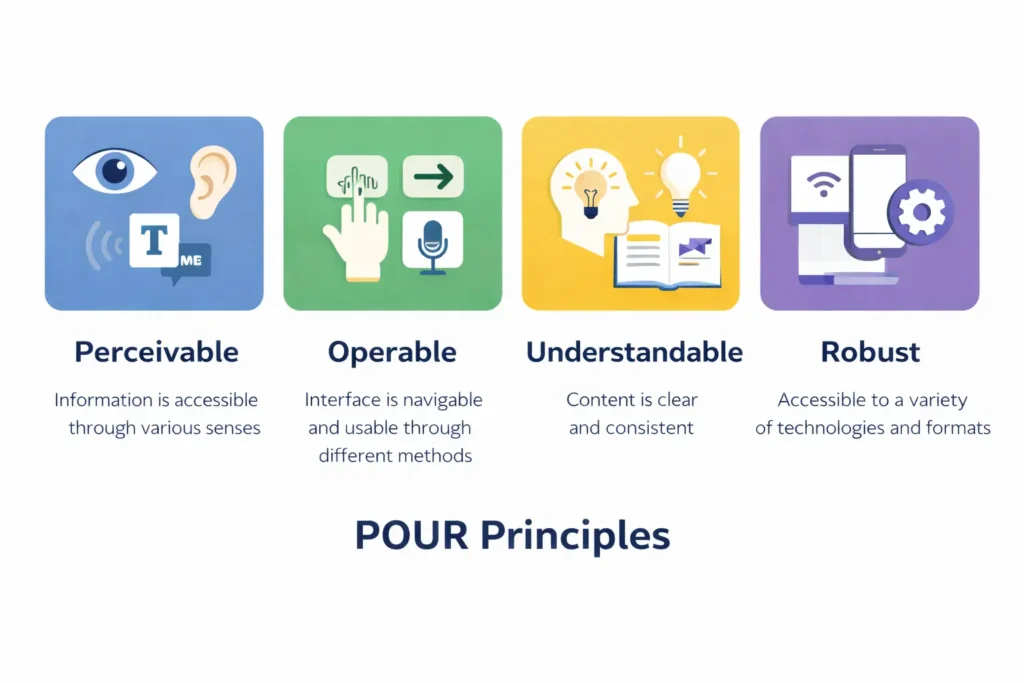
WCAG 2.1 AA organizes accessibility around four principles called POUR: Perceivable, Operable, Understandable, and Robust. For a Moodle theme, these translate into specific, testable requirements.
Perceivable means color contrast (at least 4.5:1 for body text), sufficient font size, and no information conveyed by color alone. A theme contributes here by ensuring its custom UI elements: buttons, cards, status indicators meet the same standards as the body text.
Operable means every interactive element is reachable by keyboard only. Navigation menus, course buttons, dropdowns, forms, quiz controls all of them. Focus indicators must be visible. Auto-playing animations must have a pause option. This is where visually polished themes quietly fail, hiding focus rings with outline: none because it looks cleaner.
Understandable covers consistent navigation, clear form labels, readable typography, and predictable page behavior. Cognitive accessibility features: dyslexia fonts, distraction-free modes, reading guides live here, even though WCAG doesn’t formally require them at AA level.
Robust means the code is clean enough that assistive technologies like JAWS, NVDA, and VoiceOver interpret it correctly. Proper semantic HTML, WAI-ARIA landmarks, and a logical heading hierarchy. This happens at the theme level, a poorly coded theme can break all the accessibility work Moodle’s core platform provides.
Theme vs platform: Who does what?
Moodle’s core provides the accessibility foundation: semantic HTML, ARIA roles, skip navigation. A theme sits on top. A bad theme breaks all of it. A good theme preserves the foundation and adds its own features on top. That distinction is everything when you’re comparing these five options.
The Top 5 Accessible Moodle Themes for Higher Education
1. Edwiser RemUI
Premium · $69 · 4.9 stars (200+ reviews) · 15-day free trialRemUI is the only theme on this list with a dedicated, built-in student accessibility toolbar, a persistent panel that users can open at any time to adjust the interface to their own needs, without needing IT support or browser extensions. That’s a real shift from “accessible for compliance” to “accessible for people.”
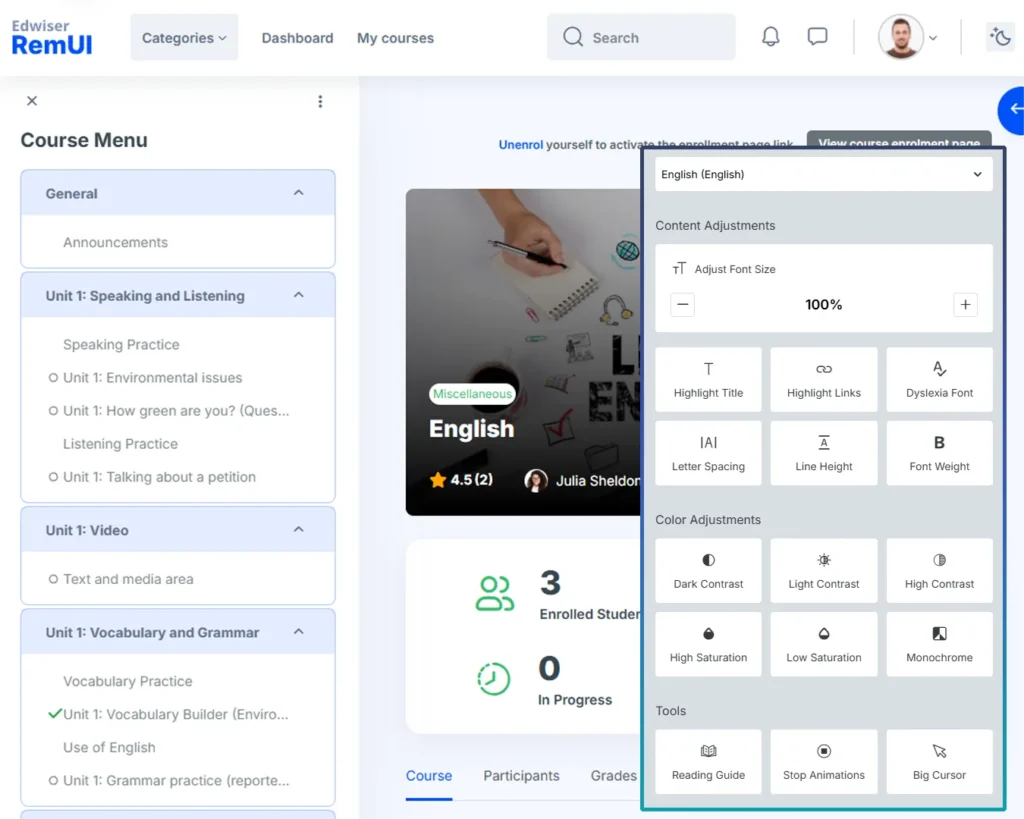
The toolbar is divided into three sections. Here’s what each feature actually does for students with disabilities:
A few of these deserve explanation. Dyslexia Font switches the entire interface to a dyslexia-friendly typeface roughly 10-15% of the population has some form of dyslexia, and weighted typefaces reduce character reversal errors meaningfully. Stop Animations is a direct WCAG 2.3 compliance feature: it pauses all motion on the page, which is critical for students with vestibular disorders or photosensitive epilepsy. Reading Guide adds a horizontal tracking line that follows the cursor, helping students with ADHD or visual tracking difficulties stay oriented on the page. High Contrast and Monochrome modes help users with low vision without requiring them to configure OS-level display settings.
Beyond the toolbar, RemUI adds Focus Mode; a full distraction-free course view that collapses navigation, the sidebar, and all surrounding UI. Students see only their current course content. For students with ADHD, anxiety, or sensory overload, this matters more than any ARIA label. And Dark Mode, a full theme-level dark color scheme, benefits students with photosensitivity, chronic migraines, or low vision in a way OS-level dark mode never quite achieves (it applies cleanly to every custom element, not just system UI).
On the structural side: default color palette passes WCAG 4.5:1, layout holds at 200% zoom, keyboard navigation covers all interactive elements, and RTL support handles right-to-left languages. The drag-and-drop homepage builder uses accessible components, so admins can structure the front page without inadvertently breaking compliance. Edwiser RemUI is the only theme with a free trial among premium Moodle themes so you can test your actual WAVE and keyboard results before committing any money.
Built-in accessibility toolbar
Font size, dyslexia font, contrast modes, reading guide, stop animations, big cursor; all student-controlled
Dyslexia font
One-click switch to dyslexia-friendly typeface for the entire interface
6 color/contrast modes
Dark contrast, light contrast, high contrast, high saturation, low saturation, monochrome
Dark mode (theme-level)
Applies cleanly to all custom elements, not a browser/OS workaround
Reading guide
Horizontal tracking line for ADHD and visual tracking difficulties
Stop animations
Pauses all motion, critical for vestibular disorders and photosensitive epilepsy
Big cursor
Enlarged cursor for low vision and fine motor control difficulties
Focus mode
Distraction-free course view; collapses nav, sidebar, all surrounding UI
Keyboard navigation
All interactive elements reachable without a mouse
RTL language support
Full right-to-left layout for Arabic, Hebrew, Farsi, Urdu
WCAG 4.5:1 contrast (default)
Default palette passes AA; configurable without breaking compliance
200% zoom compatible
Layout stays intact at high zoom, no content loss
No published VPAT
No formal conformance report for procurement teams requiring documentation
Best for: Universities that want the broadest student-facing accessibility feature set: built-in tools, cognitive accessibility, structural compliance without relying on IT customization, third-party overlays, or browser extensions.
2. Boost (Moodle Core Theme)
Free · Ships with every Moodle installationBoost is Moodle’s built-in default theme, included with every installation since version 3.2. Its accessibility case rests on one thing no third-party theme on this list provides: an official Voluntary Product Accessibility Template (VPAT) published by the Moodle HQ team with every major release. For Moodle 4.x, the documented conformance against WCAG 2.1 AA includes known exceptions and exact criteria. That paper trail is what procurement teams ask for and it’s only available here.
Structurally, Boost is built on Bootstrap 4, inheriting a solid semantic foundation. It ships with skip navigation links so keyboard and screen reader users can jump directly to main content without tabbing through the entire navigation on every page. WAI-ARIA landmarks header, main, nav, aside, footer are correctly applied, giving screen reader users like JAWS, NVDA, and VoiceOver accurate orientation across every page. The heading hierarchy (H1 through H6) is properly maintained. Visible focus indicators are preserved, Boost doesn’t use outline: none to clean up its visual design. The layout is fully responsive, holds at 200% zoom without content loss, and the default colors pass 4.5:1 contrast.
The limitation is clear: there’s no student-facing accessibility control panel. No toolbar. No dark mode. No dyslexia font. No focus mode. No cognitive accessibility tools. A student who needs any of those adjustments is working at the OS or browser level, which doesn’t always apply cleanly to Moodle’s interface. What Boost offers is the accessible structural foundation; what it leaves to others is the interface-level experience.
Official VPAT
Published WCAG 2.1 AA conformance report with every Moodle release, the only option with this
Skip navigation links
“Skip to main content” essential for keyboard users and screen reader navigation efficiency
WAI-ARIA landmarks
Correct header, main, nav, footer roles for screen reader orientation
Keyboard navigation
Full keyboard accessibility across all Moodle core interactive elements
Visible focus indicators
Focus rings preserved and visible, not suppressed by CSS
Semantic heading hierarchy
Correct H1–H6 structure across course pages for screen reader navigation
WCAG 4.5:1 contrast (default)
Default colors pass AA requirements
200% zoom compatible
No content loss or layout break at high zoom
No accessibility toolbar
No student-facing controls for any adjustments
No dark mode
Students rely on OS or browser dark mode, which can produce inconsistent results
No dyslexia font or focus mode
No built-in cognitive accessibility features
No stop animations control
No way for students to pause motion without browser extensions
Best for: Institutions where IT procurement requires a signed VPAT before software approval, or teams that need a zero-cost, well-documented accessible baseline for compliance audits.
3. New Learning
Premium · $149 · 4.6 stars (150+ reviews)New Learning sits between RemUI and Boost in accessibility depth. It doesn’t have a student-facing toolbar, but it delivers two features that go meaningfully beyond what Boost provides and both matter in a university context.
The first is full-screen focus mode. When activated, it removes the navigation bar, sidebar, footer, and all surrounding UI. Students see only their current course content. This is a cognitive accessibility feature that directly helps students with ADHD, anxiety disorders, or sensory processing differences. Only two themes on this list have it, RemUI and New Learning.
Structurally, New Learning follows standard accessibility practices. Keyboard navigation works across core UI elements. The live homepage builder uses accessible components. Default color contrast meets AA. The layout is responsive through 200% zoom. Custom login page support is included.
The gaps: no built-in accessibility toolbar, no dark mode, no dyslexia font, no stop animations control, no published VPAT. There’s no free trial so you’re buying before you can run your own tests.
Full-screen focus mode
Removes all UI except course content, cognitive accessibility for ADHD and anxiety
RTL language support
Full right-to-left layout for Arabic, Hebrew, Farsi, Urdu
Keyboard navigation
Core UI elements keyboard-accessible; live page builder uses accessible components
WCAG 4.5:1 contrast (default)
Default skin passes AA requirements
200% zoom compatible
Responsive layout holds at high zoom
No accessibility toolbar
No student-facing font, contrast, or cognitive tools
No dark mode
No built-in dark color scheme for photosensitivity or low vision
No dyslexia font or reading guide
No built-in cognitive accessibility typography tools
No stop animations control
Students can’t pause motion from within the theme
No free trial or VPAT
Commitment required before testing; no formal compliance documentation
Best for: Universities with international or multilingual student populations who need proper RTL layout support alongside a full-screen focus mode, and are comfortable committing without a trial period.
4. Space
Premium · $149 · 4.7 stars (100+ reviews)The primary accessibility feature is theme is level dark mode. Space is one of two themes on this list with it (the other is RemUI). This distinction is more important than it sounds. OS-level dark mode and browser extensions don’t apply consistently to custom web UI elements; they can invert images, break contrast on custom components, and produce unpredictable results in complex interfaces. A theme-level dark mode applies the dark color scheme to every element uniformly. Students with photosensitivity, chronic migraines, or low vision get a genuinely better experience.
RTL support is also built in, handling right-to-left layouts for Arabic, Hebrew, Farsi, and Urdu. Keyboard navigation covers core interactive elements, default contrast meets AA, and the layout is responsive through 200% zoom.
What Space doesn’t have: no student-facing accessibility toolbar, no focus mode, no dyslexia font, no reading guide, no stop animations control, no published VPAT. There’s no free trial so you’re buying before you can run your own tests.
Dark mode (theme-level)
Applies uniformly to all custom UI elements, not a browser workaround
RTL language support
Right-to-left layout for Arabic, Hebrew, Farsi, Urdu
Keyboard navigation
Core interactive elements reachable without a mouse
WCAG 4.5:1 contrast (default)
Verify custom brand colors against this standard after any palette change
200% zoom compatible
Responsive layout maintained at high zoom
Low cognitive load layout
Clean, uncluttered design reduces visual noise for processing differences
No accessibility toolbar
No student-facing adjustment panel of any kind
No focus mode
No distraction-free course view
No dyslexia font or reading guide
No cognitive accessibility typography tools
No free trial or VPAT
Highest cost on the list with no trial and no formal compliance documentation
Best for: Universities that prioritize a refined visual design with native dark mode and RTL support, have the budget for the higher price point, and don’t require a formal VPAT for procurement approval.
5. Adaptable
FreeAdaptable inherits Moodle core’s keyboard navigation and ARIA landmark structure, and its custom UI components maintain those standards. Visible focus indicators are preserved. Skip navigation links function correctly. The default color palette meets AA contrast requirements. The layout is responsive and holds at 200% zoom. Configurable color schemes let institutions apply brand colors site-wide, though any deviation from the defaults needs manual contrast verification before deployment.
There’s no student-facing accessibility toolbar, no dark mode, no dyslexia font, no focus mode, and no published VPAT. What it does have is a solid, well-maintained structural base, an active community with a genuine compliance culture, and zero cost.
Keyboard navigation (core)
Core Moodle navigation and standard blocks are keyboard accessible
Visible focus indicators
Focus rings preserved, not suppressed for visual tidiness
WCAG 4.5:1 contrast (default)
Default skin passes AA; verify after any brand color changes
Configurable color schemes
Institution-wide brand color application with manual contrast responsibility
Skip navigation links
Standard skip-to-content links preserved and functional
200% zoom compatible
Core responsive layout holds at high zoom
Custom block keyboard nav
Varies by block: sliders, carousels, tabs require individual accessibility testing before enabling
No accessibility toolbar
No student-facing controls of any kind
No dark mode or dyslexia font
No built-in visual or cognitive accessibility adjustments
No focus mode
No distraction-free view
No published VPAT
No formal conformance documentation
Best for: Universities with dedicated LMS or web teams who can test custom blocks individually before enabling them, and where budget rules out any premium option.
All Accessible Moodle Themes Comparison
| Accessibility Feature | RemUI | Boost | New Learning | Space | Adaptable |
|---|---|---|---|---|---|
| Type (Price) | Premium ($69) | Free | Premium ($149) | Premium ($149) | Free |
| WCAG 2.1 AA (default) | ✓ Yes | ✓ Yes | ✓ Yes | ✓ Yes | ✓ Yes |
| Official VPAT | ✕ No | ✓ Yes (Moodle HQ) |
✕ No | ✕ No | ✕ No |
| Built-in accessibility toolbar | ✓ Full panel | ✕ No | ✕ No | ✕ No | ✕ No |
| Dyslexia font | ✓ Yes | ✕ No | ✕ No | ✕ No | ✕ No |
| Adjustable font size (UI-level) | ✓ Built-in slider | ✕ No | ✕ No | ✕ No | ✕ No |
| Letter spacing / line height controls | ✓ Both | ✕ No | ✕ No | ✕ No | ✕ No |
| Dark / high contrast modes | ✓ 6 modes | ✕ No | ✕ No | ✓ Dark mode | ✕ No |
| Reading guide | ✓ Yes | ✕ No | ✕ No | ✕ No | ✕ No |
| Stop animations (WCAG 2.3) | ✓ Yes | ✕ No | ✕ No | ✕ No | ✕ No |
| Big cursor | ✓ Yes | ✕ No | ✕ No | ✕ No | ✕ No |
| Focus / distraction-free mode | ✓ Yes | ✕ No | ✓ Full-screen | ✕ No | ✕ No |
| Keyboard navigation | ✓ Full | ✓ Full | ✓ Full | ✓ Full | ⚠ Core only |
| Screen reader (ARIA + HTML) | ✓ Yes | ✓ Yes | ✓ Yes | ✓ Yes | ✓ Yes |
| Skip navigation links | ✓ Yes | ✓ Yes | ✓ Yes | ✓ Yes | ✓ Yes |
| RTL language support | ✓ Yes | ✕ No | ✓ Yes | ✓ Yes | ✕ No |
| 200% zoom compatible | ✓ Yes | ✓ Yes | ✓ Yes | ✓ Yes | ✓ Yes |
| Free trial | ✓ 15 days | N/A (free) | ✕ No | ✕ No | N/A (free) |
How to Test Before You Deploy
The comparison above is only as useful as the testing you do on your own Moodle instance. Theme behavior varies based on your plugins, customizations, and content. Here’s a practical three-step process.
Start with WAVE (wave.webaim.org) or the axe DevTools browser extension on a live course page. These tools flag contrast failures, missing alt text, and structural issues in seconds. Keep in mind: automated tools catch roughly 30–40% of real-world accessibility failures, according to WebAIM research. It’s a starting point, not a finish line.
Then do a keyboard-only navigation test. No mouse. Navigate a complete course; open a section, attempt a quiz, submit a form, open a resource file. Use only Tab, Shift+Tab, Enter, and arrow keys. If you can’t reach something, your students with motor disabilities face the same situation on every visit. This test takes about 15 minutes and reveals failures that automated tools miss entirely.
Finally, set your browser to 200% zoom and navigate the same course page. WCAG 1.4.4 requires readable text and usable layout at this scale. A number of themes, including some premium options, break navigation or overlap content at high zoom levels. Students with low vision commonly use 200% zoom or higher as their baseline.
One reason RemUI’s trial policy matters here
Because RemUI includes a 15-day free trial, you can run all three tests above against your actual Moodle deployment before spending anything. No other premium theme on this list offers that. When accessibility compliance is a real institutional requirement, the ability to test before committing isn’t a nice-to-have.
Final Thoughts
The gap between these themes is real, and it runs in two directions. On formal documentation, Boost is the only defensible choice when your procurement process requires a signed VPAT. Nothing else on this list can match it there.
On actual student-facing accessibility, RemUI is in a different category from everything else. A built-in toolbar with a dyslexia font, six contrast modes, a reading guide, stop animations, and a big cursor, all controllable by the student directly, addresses the real-world accessibility needs that WCAG compliance alone doesn’t cover. No third-party overlay needed. No IT ticket required. Add focus mode and dark mode, and it’s genuinely the most complete accessible experience available in a Moodle theme.
Whatever you deploy: run WAVE, run the keyboard test, and zoom to 200%. Those three checks take 20 minutes and tell you more than any feature list will.
Want the full theme comparison?
This article focuses on accessibility for higher education. For a broader comparison of top Moodle themes: design, pricing, support, features across free and premium options. Read the complete Moodle themes comparison.
Try RemUI’s Accessibility Features Free for 15 Days
The only Moodle theme with a built-in student accessibility toolbar: dyslexia font, contrast modes, reading guide, stop animations, focus mode, and dark mode included.
Start Free Trial →