Here’s a question that comes up constantly in Moodle admin circles: do I actually need a full theme, or can I just use Moodle custom CSS to get the job done?
It’s a fair question. Adding a few lines of Moodle custom CSS to tweak colours and fonts feels fast and low-risk. Installing a new theme, on the other hand, feels like a bigger commitment. Plugins to manage, potential conflicts, and a learning curve with the settings panel.
But the two approaches are solving fundamentally different problems. Once you understand what each one actually touches inside Moodle, the right choice becomes obvious for your situation. Let’s walk through it properly.
How Moodle Actually Handles Styles
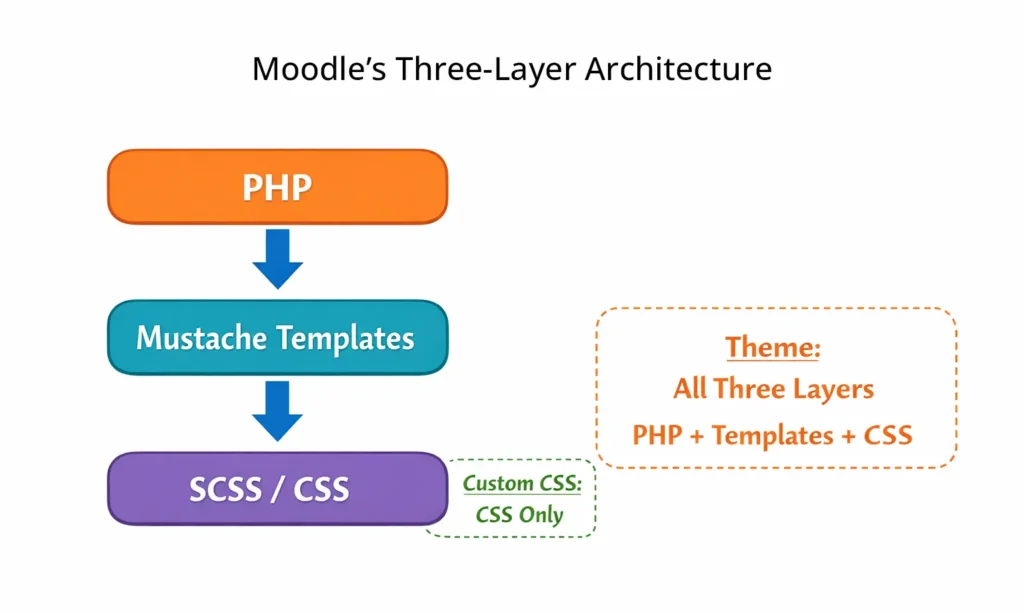
Moodle’s front end is built on three layers that work together: PHP (logic and content), Mustache templates (HTML structure), and SCSS/CSS (visual styling). A change to any one of those layers produces a different kind of result.
Since Moodle 3.2 (released in November 2016), the default theme has been Boost. A Bootstrap 4-based theme that replaced the old “More” theme. Moodle 4.0, released in May 2022, kept Boost as the default and added a redesigned navigation. Moodle 4.4 and 4.5 (released in 2024) brought further UI refinements, all still built on top of Boost’s Bootstrap foundation.
Because Bootstrap underpins the default theme, every element on the page; buttons, cards, navigation carries Bootstrap’s own specificity. That matters a lot when you try to override styles with Moodle custom CSS.
Quick context
Moodle compiles SCSS to CSS on the server side. This means custom CSS you add through the admin panel is injected after the theme’s compiled stylesheet, which gives it a higher position in the cascade, but not necessarily higher specificity.
What Moodle Custom CSS Can and Can’t Do
In Moodle, there are two main places to add custom CSS. The first is through the theme settings panel. In Boost, navigate to Site administration → Appearance → Themes → Boost, and you’ll find a “Raw initial SCSS” field and a “Raw SCSS” field. Anything you put in “Raw SCSS” gets added after the compiled theme CSS.
The second place is Site administration → Appearance → Additional HTML, where you can inject a block into the page header, though this is the less elegant option and can affect performance.<style>
What you can realistically do with Moodle custom CSS
Quite a bit, actually. Changing brand colours across the interface, adjusting font families and sizes, tweaking padding and spacing, hiding elements you don’t need, and adding custom backgrounds; all of this is achievable with a couple of hundred lines of CSS.
https://moodle.org/mod/forum/discuss.php?d=411771
Simple stuff like this works cleanly:
/* Change the navbar colour */
.navbar { background-color: #1A3B47 !important; }

/* Update primary button colour */
.btn-primary { background-color: #E8632B !important; border-color: #E8632B !important; }

/* Adjust body font */
body { font-family: 'DM Sans', sans-serif; }
Where Moodle custom CSS hits a wall
Here’s the thing the !important flags above aren’t optional. Bootstrap’s component styles carry high specificity, and you’ll find yourself writing increasingly defensive CSS just to make basic overrides stick. It becomes messy fast.
More importantly, Moodle custom CSS only changes how things look. It cannot change the HTML structure Moodle outputs. You cannot move the sidebar to a different position, redesign the course listing layout, or add a new navigation element because all of that lives in Mustache template files, which CSS cannot touch.
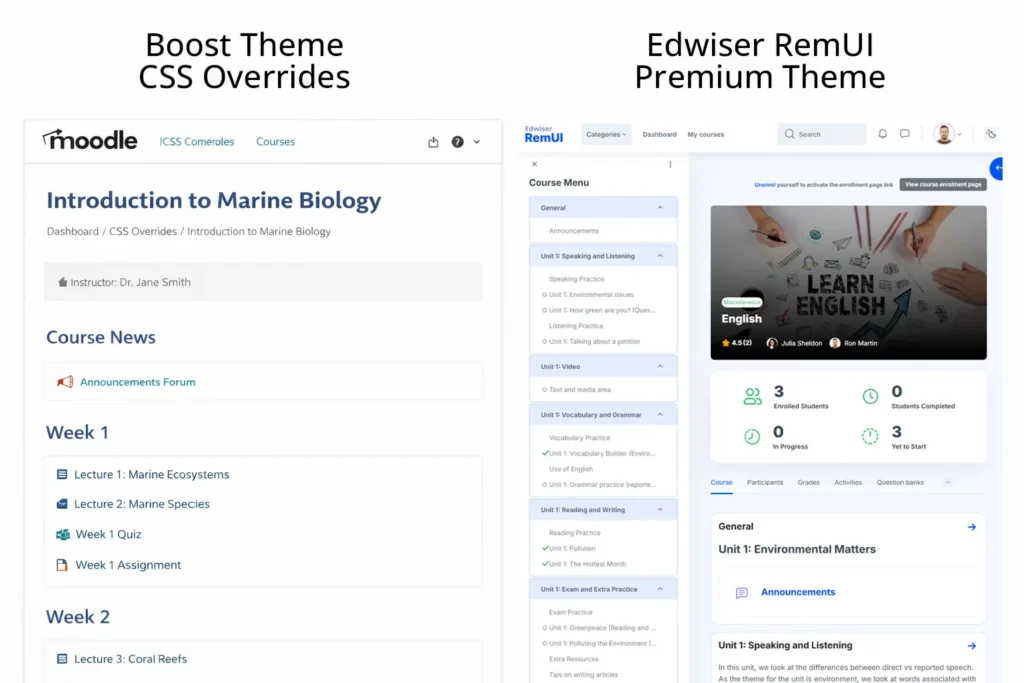
There’s also the maintenance problem. When Moodle releases an update, or when you switch to a different theme, your custom CSS can break silently. Class names change. Elements get restructured. A rule that worked perfectly in Moodle 4.3 might cause visual glitches in 4.5 and there’s no warning system for this.
What a Moodle Theme Actually Changes
A Moodle theme is a full plugin a package installed through Site administration → Plugins → Install plugins. Under the hood, it contains its own SCSS/CSS files, its own set of Mustache template overrides, JavaScript, fonts, and a configuration interface..zip
When a theme overrides a Mustache template, it completely replaces Moodle’s default HTML structure for that element. The course listing page, the user profile, the header, the footer; a theme can rebuild all of these from scratch, with completely different markup.
That’s why two Moodle sites can look nothing alike, even though they’re running the same version of Moodle. The theme controls the skeleton, not just the skin.
Theme settings panels
Most modern themes also ship with a visual settings panel where you can change colours, upload logos, toggle layout options, and configure custom sections without writing a single line of code. This is a big deal for teams that don’t have a developer on hand.

Side-by-Side Comparison
| CAPABILITY | CUSTOM CSS ONLY | FULL MOODLE THEME |
|---|---|---|
| Change colours & fonts | Yes | Yes |
| Change page layout / structure | No | Yes |
| Override HTML templates | No | Yes |
| Custom navigation menus | Limited | Yes |
| No-code branding controls | No | Yes (most themes) |
| Add custom JavaScript | Via Additional HTML | Yes (built in) |
| Mobile-responsive redesign | Tweaks only | Full control |
| Works after Moodle updates | Sometimes breaks | Theme updates handle it |
| Requires developer skills | Basic CSS knowledge | Not for most themes |
| Cost | Free | Starting from $69 |
When Moodle Custom CSS Is the Right Call
Not every situation calls for a full theme change. There are real cases where custom CSS is the smarter, faster solution.
You have a developer and a specific requirement
If your team has a front-end developer who knows Moodle’s CSS architecture, surgical CSS overrides can solve very specific problems without the overhead of maintaining a separate theme plugin. Need to restyle a particular block for a specific course? CSS is faster.
You’re making minor adjustments to a theme you already like
Most Moodle themes have a “Custom CSS” or “Raw SCSS” field in their settings. This is the right place for small tweaks, a colour adjustment here or a spacing fix there, that don’t warrant a full child theme. Almost all premium themes support this. It’s expected behaviour, not a workaround.
You’re in a testing environment
Quick visual experiments during development? Custom CSS is ideal for rapid prototyping before committing those changes to a child theme or the theme’s proper settings.
Watch out
Pasting large blocks of custom CSS directly into Moodle’s Additional HTML section (as a <style> tag) is a practice that can hurt page performance and becomes a maintenance nightmare. Use the theme’s built-in Raw SCSS field instead, it gets compiled and minified properly.
When a Theme Is the Right Call
For most Moodle deployments especially anything client-facing, corporate, or institutional a proper theme isn’t optional. Here’s why.
You need a specific layout that Boost doesn’t offer
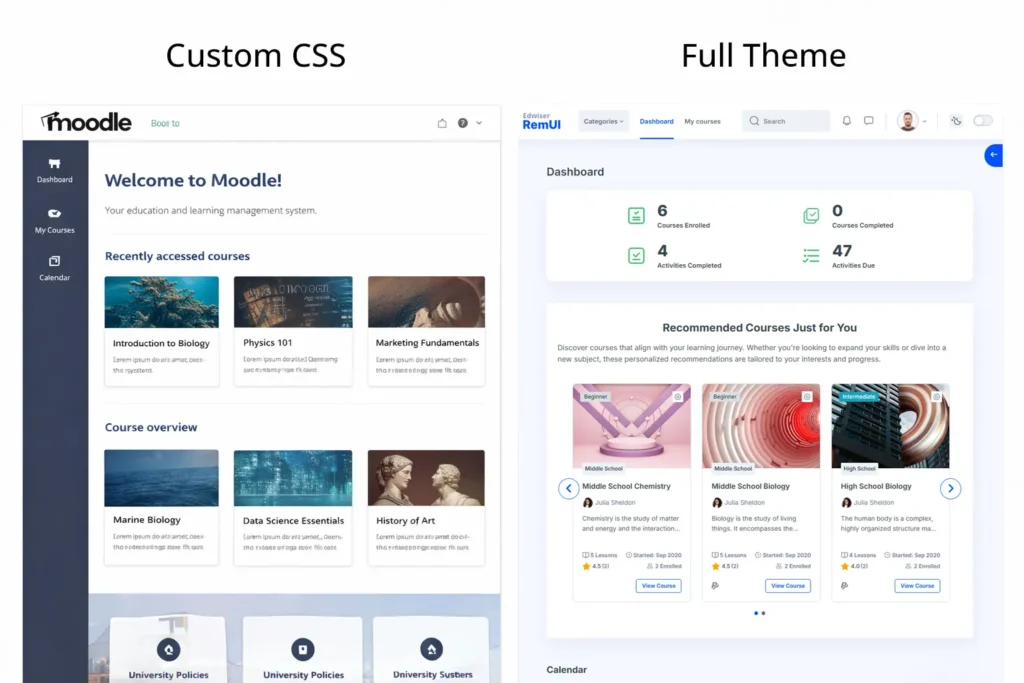
Boost is a solid foundation, but its opinionated layout decisions aren’t right for every organisation. If you want a horizontal top navigation, a customisable homepage with feature blocks, or a completely different course card layout, you need a theme that rebuilds those templates. CSS won’t get you there.
You need a consistent brand without a developer
A good theme’s settings panel means your marketing team or LMS admin can update the logo, colours, and homepage content without touching any code. That independence is genuinely valuable in organisations where developers are a bottleneck.
Your Moodle site is public-facing
If students, clients, or the public are landing on your Moodle site, the default Boost look signals “out-of-the-box LMS” immediately. A well-chosen theme communicates that your organisation has invested in the experience. First impressions matter, and Boost with a handful of CSS overrides rarely passes for a properly branded platform.
Long-term maintenance is a concern
Good theme developers release updates alongside Moodle releases. When Moodle 4.5 shipped in November 2024, theme vendors pushed compatibility updates to maintain functionality. With custom CSS alone, you’re on your own every time Moodle updates – manually checking what broke and why.
The Hybrid Approach (What Most Teams Actually Do)
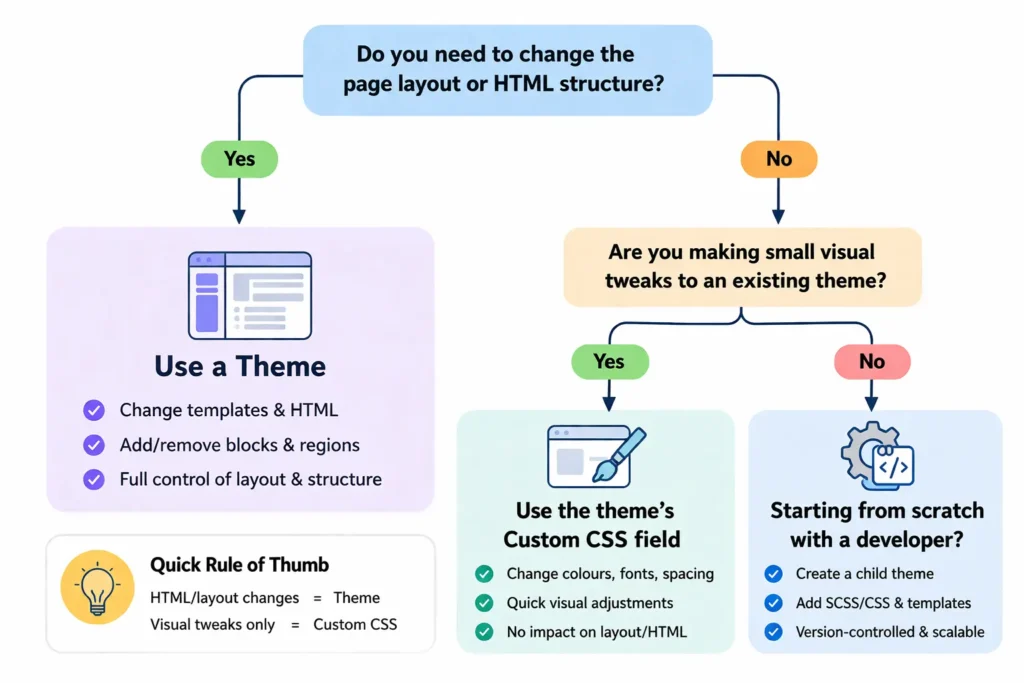
Here’s the honest reality: most Moodle sites use both.
They start with a theme either a premium theme with a strong settings panel, or a child theme built on top of Boost. Then they use the theme’s built-in custom CSS/SCSS field to handle specific refinements that the settings panel doesn’t cover.
This is the right architecture. The theme provides the structure, templates, and layout. The custom CSS field handles targeted adjustments unique to that organisation.
Best practice
If you’re using a premium theme, always use that theme’s Custom CSS field and not Moodle’s generic Additional HTML section. It keeps your overrides scoped to the theme, properly compiled, and easier to manage if you ever switch themes.
The Verdict
Custom CSS is not a shortcut to a properly designed Moodle site. It’s a tool for refinement, not transformation. If you’re starting a new Moodle deployment or redesigning an existing one, begin with the right theme. That decision shapes everything downstream: your layout options, your branding flexibility, and how much time your team spends maintaining hacks.
If you already have a theme you’re happy with, use its custom CSS field freely. It’s there for exactly this purpose. Small tweaks on top of solid foundations is the workflow that holds up over time.
And if you’re genuinely unsure which Moodle theme to start with? That part of the research is worth doing properly, the theme you choose will outlast any individual CSS change by years.
Ready to Pick the Right Moodle Theme?
We’ve reviewed and compared the top options available in 2026, free and premium, so you can make a confident choice before writing a single line of CSS.
See the Complete Moodle Themes Comparison →